How to Verify an IPTV Expert APK Before Installing It
Confirm an IPTV Expert APK is genuine before you install it: official download route, package name, signing certificate check and the real update channel.

A sideloaded or directly downloaded APK skips app-store review. Nothing stops a file from being renamed, re-hosted or repackaged before it reaches you. Before you install IPTV Expert outside the Google Play Store — or right after, as a check — you can confirm three things yourself: the file's origin, its package identity and its signing certificate. None of this needs special tools. Android's own SDK ships with everything used here.
Key takeaways
- Verification starts with the source, not the file. Only the first-party APK route or the official Downloader code for Fire TV lead to a checkable install.
- IPTV Expert's Android package name is
app.expert.playeron every platform, including the Fire TV build.apksigner verify --print-certsshows an APK's signing certificate and SHA-256 digest. IPTV Expert doesn't publish a reference fingerprint to match it against. The practical use is confirming the file is validly signed, and that the same certificate signs every update afterward.- The app's in-app update prompt checks a version number against a first-party list. That's a real signal you're on the official update path. It is not a signature check.
Why verify an APK at all
Google Play scans every app before it reaches your device. It also re-checks updates against the same signing key automatically. Sideloading skips that layer entirely — installing an APK straight from Downloader, a browser or a file manager. That's normal on Fire TV and Android TV, where IPTV Expert isn't in the Amazon Appstore. But it also means nothing else is watching for a substituted file.
The risk isn't abstract. A file called iptv-expert.apk on a forum, in a video description or on a random mirror site can contain anything. Verification narrows that risk to something checkable: where the file came from, what package it actually installs as, and whether its signing certificate stays consistent over time.
Start from the official source, every time
Verification only works if it starts before the download, not after. There are exactly two first-party routes for the Fire TV/Android TV build:
- The direct APK:
/download/androidtv-apk, hosted oniptv-expert.app. - The Downloader shortcut for Fire TV: code 2875653 inside the Downloader app. It resolves to
https://aftv.news/2875653, then to the same first-party APK.
A copy shared through a forum post, a video description or a third-party "mirror" site can't be verified downstream. Every check below would just confirm details about a file whose real origin you already can't trace. If you're sideloading IPTV Expert on Fire TV, How to Install IPTV Expert on Fire TV Safely covers that full procedure. It also includes the device check for Fire TV models that can't sideload at all.
Check the package name
Every Android app has a package name. It's a stable identifier baked into the app at build time, separate from its display name or version number. IPTV Expert's package name is app.expert.player on every platform it ships for, including the dedicated Fire TV/Android TV build.
You can read it a few ways after installing:
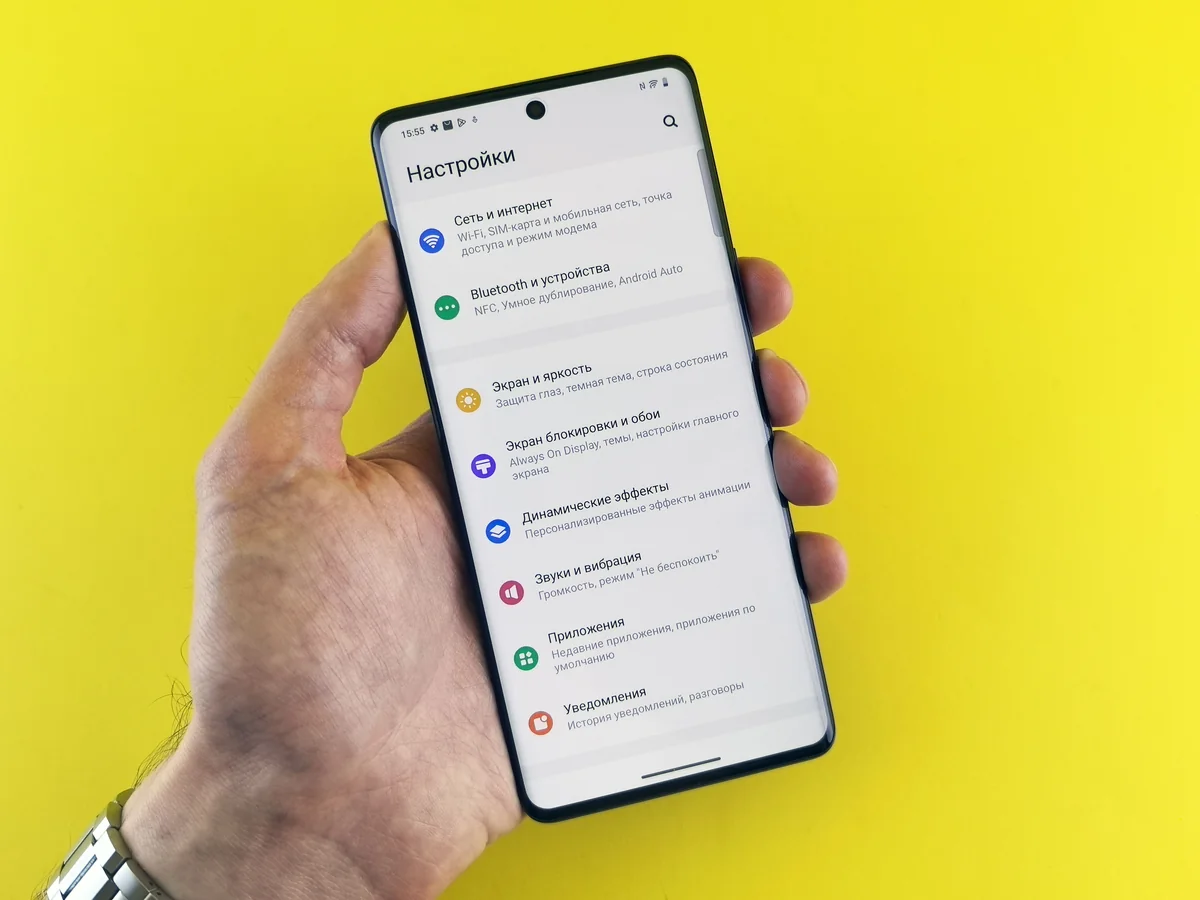
- Open the device's app-info screen (Settings > Apps > IPTV Expert > App details; wording varies by Android version) and look for the package or application ID field.
- Use a file-manager app that shows package details for installed apps.
- On a computer with Android's platform tools installed, run
aapt dump badging IPTVExpert.apkagainst the downloaded file before installing. Check thepackage: name=line in the output.
A different package name than app.expert.player — even one that looks similar — means you're not looking at IPTV Expert. That's the fastest check here. It costs nothing beyond opening a settings screen. This guide was verified against the Fire TV/Android TV build version 2.4.0 (build 285) and the mobile build version 10.2.2 (build 286); the package name is unchanged across both.
Check the signing certificate with apksigner
Every Android APK is cryptographically signed. The signature proves the file hasn't been altered since signing. It also means every future update has to carry that same certificate, or Android refuses to install it as an update over the existing app.
Android's SDK build-tools include apksigner, the tool Google documents for exactly this (Android Developers, accessed 2026). With build-tools installed, point it at a downloaded — not yet installed — APK file:
apksigner verify --print-certs IPTVExpert.apkThis confirms whether the signature verifies successfully across supported platform versions. With --print-certs, it also prints details about the signing certificate itself. In practice, that output includes a line reporting the certificate's SHA-256 digest, alongside its issuer and validity details (example output, 2024).
Here's the honest limitation. IPTV Expert doesn't publish a reference certificate fingerprint anywhere for readers to compare against. So this command's value here is narrower than it would be for software that ships a published checksum:
- It confirms the file is validly signed at all, rather than corrupted or unsigned.
- It gives you a fingerprint you can save and compare the next time you sideload an update. A future "IPTV Expert" file with a different signing certificate is the real red flag — not a missing match to a number the developer never published in the first place.
This test narrows the problem to file authenticity and update consistency. It doesn't, on its own, prove the app's runtime behavior is safe. That's a separate question the certificate check isn't designed to answer.
What the built-in update checker tells you
Sideloaded apps can't silently auto-update the way Play Store or Amazon Appstore apps do. There's no store watching in the background. IPTV Expert's Fire TV/Android TV build handles this with its own in-app check instead. On launch, it compares the installed build number against a first-party list of available versions. If a newer build exists, it shows an install prompt rather than replacing itself silently. Occasionally an update is marked required, and the prompt won't dismiss until you install it.
This is a real, working update channel. Reaching it is itself a mild verification signal — it means the app you installed is wired to IPTV Expert's own version list, not some standalone or modified build. But be precise about what it isn't: the check compares a version number, not a cryptographic signature. Seeing the update prompt tells you that you're on the official update path. It doesn't independently confirm the certificate on the file it offers you. That's why the two checks in this guide work together rather than replace each other.

Quick verification checklist
| Check | What to look at | What it confirms |
|---|---|---|
| Source of the file | Did it come from /download/androidtv-apk, the Downloader code 2875653, or the platform's official store? |
Rules out mirrors and reuploads before anything else matters |
| Package name | app.expert.player in app info, a file manager, or aapt dump badging |
You're looking at IPTV Expert, not a similarly named app |
| Signing certificate | apksigner verify --print-certs on the downloaded file |
The file is validly signed; the certificate stays the same across your own updates |
| Update-prompt origin | The in-app update check offers a new build without you searching elsewhere | You're on IPTV Expert's own version list, not a standalone or modified copy |
What this can't fully guarantee
Be clear-eyed about the ceiling here. IPTV Expert doesn't publish a reference SHA-256 fingerprint for its signing certificate. Nothing in this guide gives you an external number to match against, the way you could for software that ships a published checksum page. What you get instead is consistency evidence: the same first-party source, the same package name, and the same signing certificate release after release. Add an update mechanism that only offers builds from IPTV Expert's own list, and that's the full picture this guide can support.
If any of those checks come back inconsistent — a different package name, a signing certificate that changed without explanation, or a file that didn't come from the official route in the first place — the safest response is the same either way. Uninstall, then reinstall from /download/androidtv-apk or the Downloader code above. Don't try to "fix" a file you can't otherwise verify.
Already confirmed your install and want to add a source? How to Add an M3U Playlist to IPTV Expert covers that next step. Still deciding whether IPTV Expert is the right Fire TV player for you? Best IPTV Player for Fire TV in 2026 compares the field. For any other device, the full IPTV Expert download chooser routes to the correct build.

IPTV Expert
Watch on your screen
Download IPTV Expert for your preferred platform.
 Editorial & Product TeamIPTV Expert TeamThe IPTV Expert team documents advanced playback, playlist management, device setup, codecs, EPG and troubleshooting from hands-on testing across supported platforms.
IPTV Expert does not provide, host or sell channels, playlists or subscriptions.