Can You Use IPTV Expert on an LG TV? Supported Options Explained
IPTV Expert has no LG webOS app. Here's the honest path: cast from your phone on Cast-enabled LG TVs, or add an external Android TV or Fire TV device.

IPTV Expert does not have a native LG webOS app. There's no listing in the LG Content Store, and there's no sideload route for it either. That's the direct answer. It isn't the whole story, though. Depending on your LG TV's age and firmware, you have one of two genuinely working paths to watch IPTV Expert on an LG screen. This guide only covers the ones that actually hold up.
Key takeaways
- IPTV Expert has no native LG webOS app. Don't look for it in the LG Content Store — it isn't there, and nothing in this guide asks you to sideload one.
- If your LG TV supports Google Cast (2024-and-newer models, plus many 2022–2023 sets after a webOS 24 firmware update), you can cast IPTV Expert directly from your phone, tablet or computer — no extra hardware.
- If your LG TV doesn't support Google Cast yet, plug in an Android TV box, Google TV stick or Fire TV device instead. IPTV Expert already ships a native Android TV build for exactly that setup.
- IPTV Expert supports AirPlay and Chromecast-compatible casting to compatible receivers on the same local network. The app sends the original stream without transcoding, so video and audio format support depends on the receiver.
Does IPTV Expert have a native LG webOS app?
No. LG Smart TVs run webOS. That's a different operating system from Android TV, Fire TV or Google TV, and it's gated entirely differently too. An app has to be submitted, approved and published specifically for the LG Content Store. That's a separate build from the Android app most IPTV Expert users install. IPTV Expert has not published one. Searching the LG Content Store for it turns up nothing — a handful of unrelated IPTV apps exist there instead (Smart IPTV, SS IPTV, IPTV Smarters Player among them), never IPTV Expert.
That matters for a practical reason. If a site or forum tells you to "sideload IPTV Expert on your LG TV," it's describing a process that doesn't apply here. webOS doesn't support the kind of unknown-sources sideloading Fire TV allows, and there's no first-party IPTV Expert webOS build to sideload in the first place. Skip that advice. Use one of the two paths below instead.
Path 1: cast IPTV Expert from your phone or computer
LG has been building native Google Cast support directly into its TVs. Google's own VP of multi-device experiences announced the partnership on stage at LG's CES 2024 press conference: "Today, we're thrilled to announce LG TVs in 2024 will now have Chromecast built-in" (9to5Google, 2024). The rollout didn't stop at new sets. LG extended it to 2023 OLED C3 and G3 models through webOS 24 firmware 23.20.50, starting in October 2024 (9to5Google, 2024), and later to select 2022 OLED models — the A2, B2, C2, CS, G2 and Z2, plus the OLED Flex and Objet Collection Posé sets — as part of LG's longer-term webOS Re:New update program (ChannelNews, 2024).
If your TV falls into one of those groups, you don't need an app on the TV at all. IPTV Expert's iPhone, iPad, Android, macOS and Windows apps already include a Cast button. It connects to any Google Cast receiver on your network. A Cast-enabled LG TV is exactly that.
Check whether your LG TV supports Google Cast
- Open your LG TV's settings and find the software or webOS version. Look under Settings > All Settings > Support > Software Update, or Settings > General > About This TV, depending on your remote and menu layout.
- Compare it against webOS 24 (build 23.20.50 or later for 2023 models, or the equivalent update for 2022 and 2024+ models). Google Cast is likely already present if your TV is a 2024-or-newer model with the latest available update installed.
- No firmware update available yet for a 2022 or 2023 model? LG's rollout has been staged model by model and region by region rather than delivered all at once. Check back periodically under Software Update. There's no fixed date guaranteed for every unit.
Cast IPTV Expert to a Cast-enabled LG TV
- Confirm your phone or computer and your LG TV are on the same Wi-Fi network.
- Open IPTV Expert and start playing a source, or open the app's Cast menu.
- Select the Cast icon inside IPTV Expert.
- Choose your LG TV from the list of available devices.
- Playback continues on the TV. Use IPTV Expert's on-device controls to pause, seek or stop.
What casting does and doesn't do
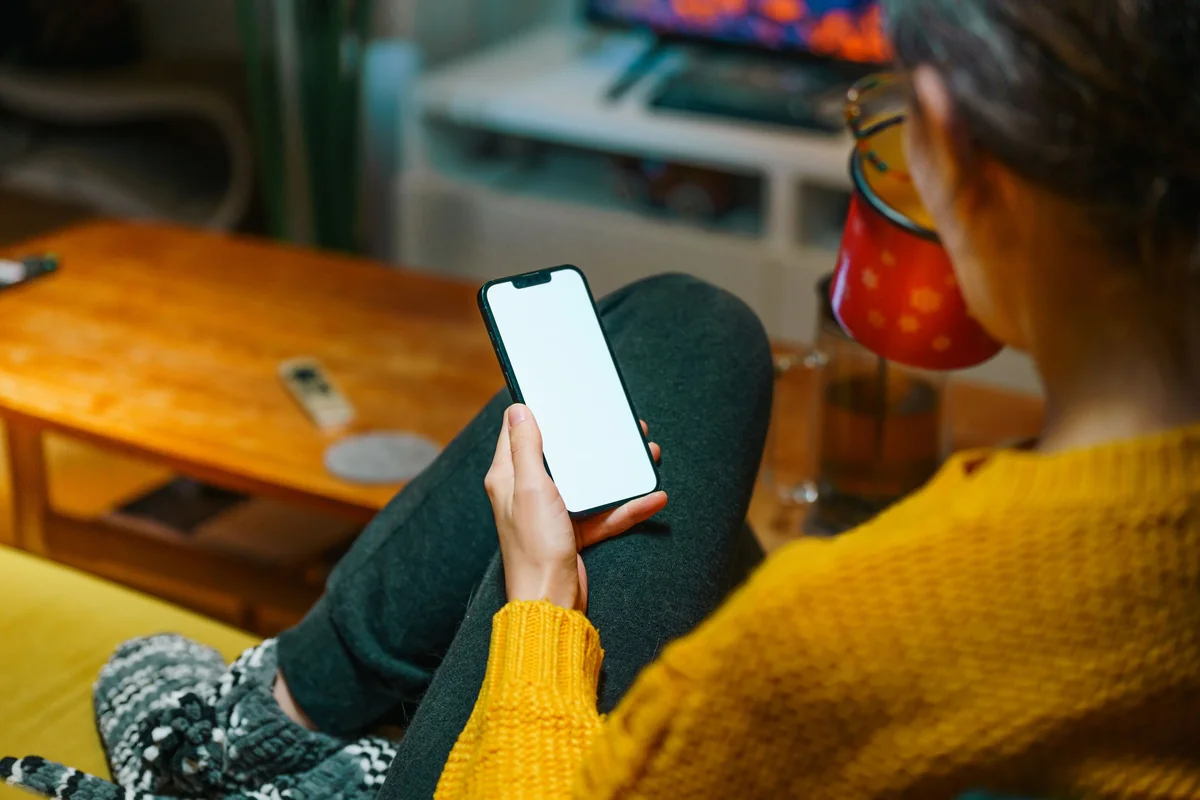
Casting sends the video stream and playback controls to your LG TV. It doesn't install IPTV Expert on the TV itself. Your phone, tablet or computer stays part of the loop. Closing IPTV Expert or losing its network connection can interrupt playback, since the TV isn't running an independent copy of the app. Think of it as the TV becoming a second screen for IPTV Expert, not a fully separate device installation. That's normal Google Cast behavior. It isn't a limitation specific to IPTV Expert.
IPTV Expert supports AirPlay and Chromecast-compatible casting to compatible receivers on the same local network. The app sends the original stream without transcoding, so video and audio format support depends on the receiver.
Path 2: add an external streaming device
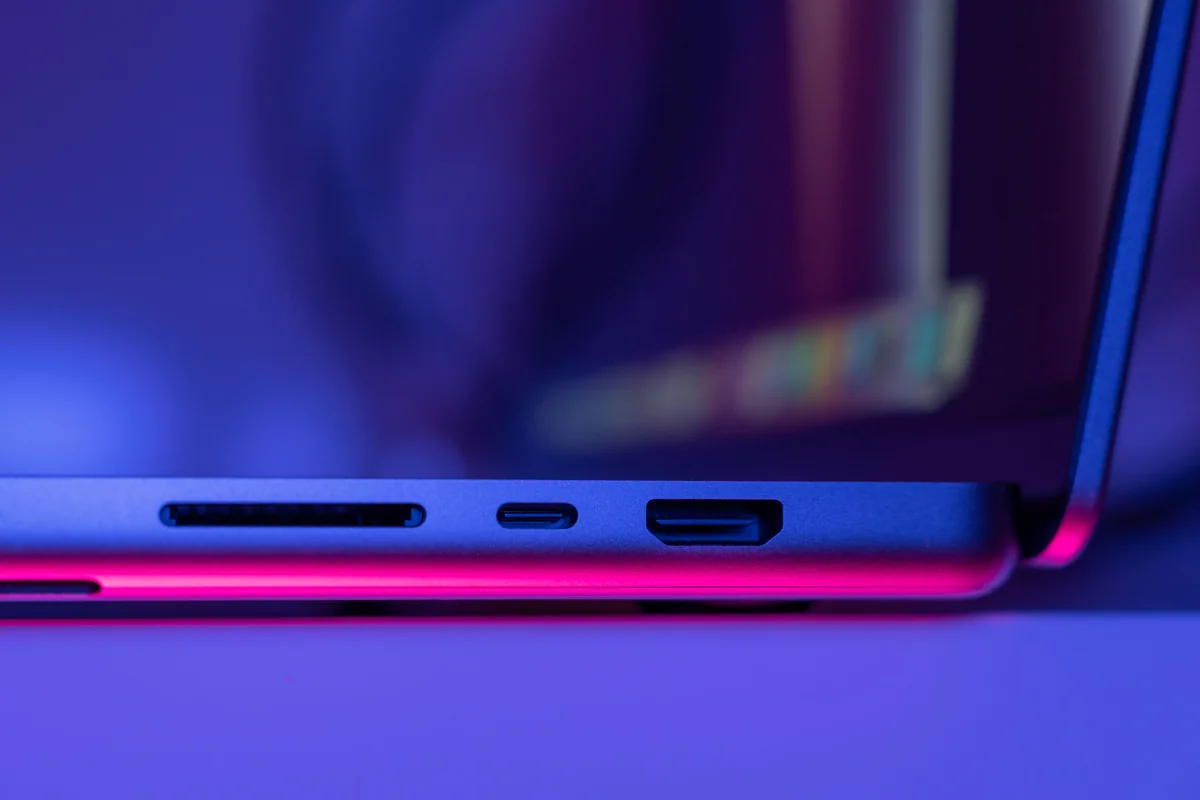
Your LG TV might predate Google Cast, or its firmware update might not have landed yet. Either way, the honest option is to add a small external device. Don't wait around, and don't try to force an install that doesn't exist. IPTV Expert already ships a dedicated Android TV build. It's the same build used on Android TV boxes, Google TV devices and select Fire TV hardware, so this isn't a workaround invented for this guide. It's the same install path IPTV Expert already documents for those platforms.
Devices that work
- Android TV or Google TV box or stick. Plug it into any free HDMI port on your LG TV, then switch the TV's input and set it up like any other streaming device. IPTV Expert's Android TV build installs the same way it does on dedicated Android TV hardware. See Best IPTV Player for Android TV and Google TV in 2026 for device options.
- Amazon Fire TV Stick or Cube. Also connects over HDMI. It runs IPTV Expert's Android TV build through sideloading. How to Install IPTV Expert on Fire TV Safely walks through the exact Downloader-code steps, including which current Fire TV models can and can't sideload.
- Chromecast with Google TV. Functions as its own Android TV-class device once plugged in. That works independently of whether your LG TV has native casting.
Install IPTV Expert on the connected device
Plug in the external device, select it as your LG TV's input, and connect it to Wi-Fi. Then install IPTV Expert using the same route as any other Android TV or Fire TV setup:
- On an Android TV or Google TV device, use the official direct Android TV APK. Or use the Downloader code shortcut if your device supports sideloading.
- On Fire TV specifically, follow the Fire TV install guide end to end. It covers the Vega OS sideloading exception on some newer Fire TV Sticks — an issue tied to the Fire TV hardware itself, regardless of which TV it's plugged into.
- Open IPTV Expert from the external device's home screen or apps row, exactly as you would on any Android TV or Fire TV setup.
This route has one advantage over casting: IPTV Expert runs natively on the streaming device. Playback doesn't depend on a phone or computer staying connected.
Which path applies to your LG TV?
| Your situation | Path | What you need |
|---|---|---|
| 2024–2026 LG TV with the latest webOS update installed | Path 1 — cast from phone/computer | Same Wi-Fi network, IPTV Expert's Cast button |
| 2022–2023 LG OLED model, webOS 24 update not yet received | Wait for Path 1, or use Path 2 now | Check Settings > Software Update periodically |
| Older LG TV with no Google Cast support planned | Path 2 — external streaming device | Any free HDMI port and an Android TV, Google TV or Fire TV device |
| Want IPTV Expert to keep playing without your phone staying active | Path 2 — external streaming device | Same as above |
Troubleshooting
| Symptom | Likely cause | What to check |
|---|---|---|
| No Cast icon shows in IPTV Expert | Your phone or computer platform build doesn't expose casting, or Platform restrictions apply on Linux |
Confirm you're on iOS, Android, macOS or Windows; Linux builds don't expose the Cast button |
| LG TV doesn't appear in the device list | TV's webOS version predates Google Cast, or TV and phone are on different networks | Recheck the webOS version under TV settings, and confirm both devices share the same Wi-Fi network |
| External device installed but doesn't show as an "app" on the LG remote | LG's Home screen mainly surfaces LG Content Store apps, not HDMI-input devices | Use the TV's Input/Source button to switch to the correct HDMI input directly instead of looking for an app icon |
| Cast connects but playback stutters | Normal Wi-Fi casting behavior under network load, unrelated to Path 2 | Move the router closer, or switch to Path 2's external device, which plays back locally instead of streaming over Wi-Fi from your phone |
FAQ
Is there an LG webOS version of IPTV Expert planned? This guide reflects the current state of IPTV Expert's supported platforms. There's no webOS build available today. Nothing here should be read as a promise of one.
Will casting work on every LG TV? No. It depends on your TV's model year and webOS version. Check Settings > Software Update, or LG's own support pages, to confirm your specific set.
Does IPTV Expert support AirPlay? IPTV Expert supports AirPlay and Chromecast-compatible casting to compatible receivers on the same local network. The app sends the original stream without transcoding, so video and audio format support depends on the receiver.
Does Path 2 need an LG-specific setup step? No. An Android TV box, Google TV stick or Fire TV device plugged into any HDMI port works the same way regardless of TV brand. The LG TV only acts as a display.
Can I use both paths on the same TV? Yes. They're independent. Casting from a phone doesn't require or block an external device plugged into another HDMI port, and vice versa.
Next steps
Comparing IPTV Expert's Samsung TV path before you decide on hardware? Can You Use IPTV Expert on a Samsung TV? Supported Options Explained covers the same casting-versus-external-device decision on a different platform. Already have an external Android TV or Fire TV device set up? Best IPTV Player for Android TV and Google TV in 2026 and How to Install IPTV Expert on Fire TV Safely cover device setup end to end. Splitting IPTV Expert across an LG TV and other devices? Best IPTV Player for Multiple Devices and Cloud Sync explains what carries over between them, and what doesn't.
Ready to get IPTV Expert on the device you'll actually use? The full download chooser routes you to the right build for your phone, computer or streaming device.

IPTV Expert
Watch on your screen
Download IPTV Expert for your preferred platform.
 Editorial & Product TeamIPTV Expert TeamThe IPTV Expert team documents advanced playback, playlist management, device setup, codecs, EPG and troubleshooting from hands-on testing across supported platforms.
IPTV Expert does not provide, host or sell channels, playlists or subscriptions.