Best IPTV Player for 4K, HDR and Dolby Vision: What Actually Controls the Picture
Best IPTV player for 4K HDR? See the five-link chain behind a real HDR picture, AV1's 30%+ efficiency edge, and what IPTV Expert actually decodes.

Search for the best IPTV player for 4K HDR and you'll find lists that name apps next to a checklist: 4K, HDR, Dolby Vision. Almost none of those lists explain how they checked. That matters, because HDR and Dolby Vision aren't things a player switches on by itself.
They depend on a chain: the source stream, the codec, the decoder, the app, and the screen. Break one link and you get a flat, SDR-looking picture — even from an app that claims full support.
This guide walks that chain. It also tells you, plainly, what IPTV Expert does and does not do in it, based on its actual code rather than a marketing claim.
Key takeaways
- Getting real 4K HDR depends on five things: source metadata, codec, decoder, app passthrough, and display panel. A player can only control one or two of those.
- IPTV Expert decodes video in hardware on iOS, macOS and Android, and ships a bundled AV1 decoder on its Android TV build (tested version 10.2.2, TV build 2.4.0, checked 2026-07-21). It does not implement HDR10, HDR10+, Dolby Vision or HLG processing.
- No player in this category — including the ones most often named as "Dolby Vision certified" — has published first-party proof of real Dolby Vision decoding. Most of those claims trace back to reseller or affiliate pages, not the app developers.
- A short device check tells you more about your picture quality than any app's marketing copy.
Quick check before you continue
- This page separates verified IPTV Expert behavior from what depends on your device, source format or provider.
- Use the criteria and limits shown here before choosing a player or following a setup step. Any URL, login or code example is illustrative and must not be reused as access.
- If you need the next format-specific step, open the related guide and confirm that it matches your device.
Short answer: when the device, source format and goal match the checks above, you have a concrete next step without having to guess.
What actually decides the best IPTV player for 4K HDR?
Five links have to hold, in order. If any one breaks, the picture falls back to standard dynamic range, even if every other link is fine.
The five links in the chain
- The source stream needs real HDR or Dolby Vision metadata attached to it. A channel labeled "4K" can still be upscaled standard-definition video with no HDR data at all.
- The codec — usually HEVC or AV1 for 4K — has to be one your device can decode.
- The decoder needs hardware support for that codec at that resolution and bit depth. Without it, playback falls back to software decoding, which is slower and often forces a switch to SDR.
- The app has to pass the HDR signal straight through, instead of quietly tone-mapping it down to SDR for compatibility. Android has shipped this kind of automatic HDR-to-SDR tone mapping at the platform level since Android 13, through a shared library called
libtonemap(Android Open Source Project, tone mapping docs) — so a device can downconvert HDR video without the app doing anything wrong at all. - The display — the panel and the HDMI cable between it and your device — has to be HDR or Dolby Vision certified, on a connection new enough to carry the signal.
A player only controls one or two of these five links. The rest depend on your source provider, your device, and your TV. That's the part most "best IPTV player" lists skip.
If you already have a source ready to add, How to Add an M3U Playlist to IPTV Expert covers the setup steps. Want the full cross-platform picture first? Best Free IPTV Players in 2026 compares player software across every supported device before this article narrows down to 4K and HDR specifically.
Check your source stream first
Before you blame a player, check what it's actually receiving.
"4K" describes resolution. HDR describes dynamic range and color. A stream can be one without the other, or neither, no matter what the channel name says. Genuine HDR needs metadata carried inside the stream itself.
There are four HDR formats worth knowing:
- HDR10 sets one fixed brightness and color setting for an entire piece of content, from start to finish. It's an open standard published by the Consumer Technology Association, using static metadata rather than scene-by-scene adjustments (HDR10, Wikipedia; DisplayNinja).
- HDR10+ adds dynamic metadata on top of the HDR10 baseline, adjusting brightness scene by scene instead of using one fixed setting for the whole thing (DisplayNinja).
- Dolby Vision also uses dynamic metadata, adjusting picture parameters on a per-shot or even per-frame basis rather than one fixed setting, and Dolby markets it as dynamically optimizing image quality for the specific device and platform playing it back (Dolby Vision overview, Dolby Laboratories). It's a proprietary Dolby Laboratories format: device manufacturers and professional mastering tools need a Dolby license to support it (Dolby Vision, Wikipedia). That licensing requirement is a real reason many budget TVs and apps skip it entirely.
- HLG (Hybrid Log-Gamma) uses static HDR and was developed by the BBC and NHK specifically for live broadcast, and is compatible with both HDR10 and Dolby Vision displays (DisplayNinja). Since most IPTV content is live, this format matters more here than it does for on-demand streaming.
If your source doesn't carry one of these formats, no player can add it after the fact.
Codec and decoder: HEVC vs AV1, hardware vs software
4K video needs a lot of data, unless it's compressed with a modern codec. Both HEVC and AV1 exist because the older H.264 codec costs too much bandwidth to distribute 4K at scale. That's why 4K IPTV streams are almost always HEVC or AV1, not H.264.
How much more efficient is AV1 than HEVC?
| Codec | Compression efficiency vs H.264 | Typical hardware decode support |
|---|---|---|
| H.264 | Baseline | Close to universal, but too costly for 4K at scale |
| HEVC (H.265) | Meaningfully smaller files than H.264 at the same quality | Close to universal on TVs and streaming boxes from the last several years |
| AV1 | Roughly 30% smaller than HEVC at equal quality, growing past 40% at higher resolutions like 4K (VideoProc codec comparison) | Newer and inconsistent; common on devices from around 2023 onward, present in some devices from 2020 |
Why the decoder chip still matters
Your device still needs a hardware decoder for whichever codec the stream uses. AV1 hardware decoding only became common across most streaming devices and TVs from around 2023, though a handful of devices have supported it since 2020 (AV1 decoding device guide, AndroidTVBox.eu). Plenty of still-current devices lack it entirely.
Without hardware decoding, a device falls back to software decoding. That's slower, drains more battery, and on many platforms triggers an automatic switch to SDR output as a compatibility fallback — even if the source itself carries HDR metadata.
What IPTV Expert actually does in this chain
Here's the honest version, checked directly against the app's source code (version 10.2.2 build 286 for phones, tablets and desktop; version 2.4.0 build 285 for the Android TV build; checked 2026-07-21).
Hardware decoding is enabled on iOS, macOS and Android. Playback runs through hardware acceleration on those platforms rather than falling back to software decode by default. Linux playback currently runs through software decoding instead. The Android TV build uses Android's Media3/ExoPlayer engine, with hardware decoding as its default path. That build also ships a bundled AV1 decoder.
HDR and Dolby Vision are not implemented. There's no code path in the app for HDR10, HDR10+, Dolby Vision or HLG. No color-space handling, no metadata parsing for any of those formats exists in IPTV Expert's own code. A source stream that genuinely carries HDR metadata might still render as HDR-looking video, because the underlying playback engine and your device's own screen pipeline can handle that independently of IPTV Expert. That outcome depends on your OS and hardware, not on anything the app itself adds. IPTV Expert makes no claim to decode or manage HDR formats, and this article won't either.
That's a limitation, not a hidden one. It's shared with most of the category — see the next section.
Once your source and device are ready, the full IPTV Expert download chooser covers every supported platform.

Why "supports HDR" claims are hard to trust across every IPTV player
This isn't unique to IPTV Expert. Checking the apps most often named in "4K HDR" roundups turns up the same pattern: general claims in store listings or reseller copy, with no first-party technical page that actually documents Dolby Vision decoding.
TiviMate, IPTV Smarters Pro, GSE Smart IPTV, Perfect Player and XCIPTV Player are the names that come up most often. Some of their store listings describe "4K HDR" support in general terms. None publish a developer-authored specification proving genuine Dolby Vision decode. As one example, not proof for the whole category, one 2026 community troubleshooting discussion about an IPTV HEVC AV1 player shows exactly the dark-picture and HDR-detection problems this article covers, worked out setting by setting rather than solved by any app's marketing copy (user-reported troubleshooting thread, Techkings forum, accessed 2026-07-21).
None of this makes any of those apps bad choices. It means the "HDR support" checkbox in most roundups isn't something you can verify by reading the list. You have to check it yourself, on your own device.
A verification checklist before you blame the player
Run this check with any player, including IPTV Expert, before assuming an app is at fault for a disappointing picture.
Four steps to isolate the real cause
- Play the same title in a known HDR app first. Open a major streaming app with confirmed HDR content on the same TV and input. If your TV shows an HDR indicator there but not on your IPTV source, the source or the connection is the likely cause, not the player.
- Check your TV's own HDR indicator. Most TVs show a small on-screen badge when an HDR signal is detected. If it never appears during IPTV playback, either the source has no HDR metadata or the signal isn't reaching the display.
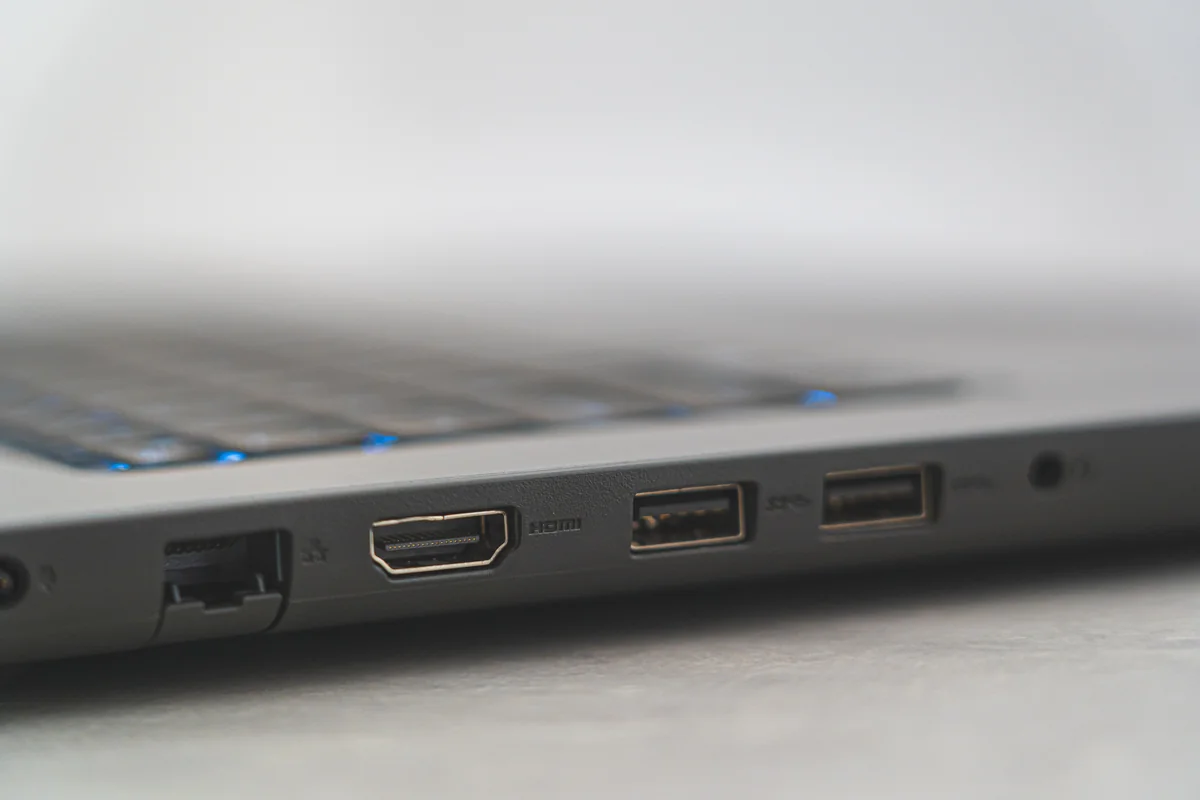
- Check your HDMI cable and port version. HDR needs HDMI 2.0a or newer; full-bandwidth 4K at high frame rates or Dolby Vision needs HDMI 2.1. An older cable can silently cap you at SDR.
- Confirm your provider's stream is genuinely 4K HDR, not just labeled that way. Ask your source provider directly if you're not sure, since a player can't add metadata a stream never had.
Network and device requirements for smooth 4K playback
Even with every link above in place, 4K HDR streaming still needs enough bandwidth to avoid stutter and buffering. Ask your provider what bitrate their 4K stream actually runs at, then plan for a stable connection with real headroom above that number — not just enough to match it. Headroom matters more on a shared home network and more still over Wi-Fi than over a wired connection.
IPTV Expert's shared playback engine uses a 128 MB buffer on supported platforms, which gives the app room to absorb short network dips without interrupting playback outright. That buffer smooths out brief slowdowns; it doesn't fix a connection that's consistently too slow for the stream's real bitrate.
Which devices should you use IPTV Expert on for the best picture?
Hardware decoding matters most on the devices where IPTV Expert enables it: iOS, macOS and Android, including Android TV through the dedicated TV build. Those are the platforms where you're working with the full advantage of your device's own decoder chip rather than a software fallback.
If you're deciding between specific devices, Best IPTV Player for Android in 2026, Best IPTV Player for Fire TV in 2026 and Best IPTV Player for Windows in 2026 cover the platform-specific setup and install paths in more depth.
The picture you get depends on more than the app
There is no single best IPTV player for 4K HDR that can guarantee Dolby Vision or HDR10 output on its own. That's true of IPTV Expert, and based on the research behind this article, it's true of every other player commonly recommended for this use case too — at least none with public, verifiable proof otherwise.
What you can control is everything upstream of the app: a source that actually carries HDR metadata, a device with hardware decoding for the right codec, a current HDMI connection, and an HDR-certified screen. Work through that chain before you judge any single app on picture quality.
Ready to set up a source? The full IPTV Expert download chooser covers every supported platform.

IPTV Expert
Watch on your screen
Download IPTV Expert for your preferred platform.
 Editorial & Product TeamIPTV Expert TeamThe IPTV Expert team documents advanced playback, playlist management, device setup, codecs, EPG and troubleshooting from hands-on testing across supported platforms.
IPTV Expert does not provide, host or sell channels, playlists or subscriptions.