Xtream Codes Login Not Working: A Step-by-Step Checklist
Xtream Codes login not working? A code-verified checklist that orders the real causes, and states plainly what one shared error screen can't tell you.

This is for one specific situation. You already have a Server, Username and Password from a provider you're authorized to use, and the login isn't working. Maybe it never worked. Maybe it worked last week and stopped. Either way, this isn't a guide to getting Xtream Codes access. IPTV Expert doesn't supply, sell or generate accounts of any kind. It's a checklist for figuring out why credentials you already have aren't getting you in.
Here's the honest part most guides skip. A media player's error screen usually can't tell you which of several causes you're dealing with. This one won't pretend otherwise. Instead, it gives you an order to check things in, from cheapest to rule out to hardest. It also tells you plainly where the checklist ends and a call to your provider begins.
Key takeaways
- IPTV Expert only catches one failure at save time: an empty required field, labeled "Mandatory." Everything else surfaces later as one identical "Refresh failed" screen — a wrong server, a typo, an offline network, an expired subscription, all the same.
- That screen can't distinguish its own causes. That's not a wording problem. The app's refresh result is a plain success-or-fail value, with no per-cause detail passed up to the screen you see.
- Work through causes in order: empty fields, then Server typos, then Username/Password typos, then your network, then your provider. Each step is cheaper to rule out than the next.
What IPTV Expert's login screen can tell you immediately
Open the add-source screen and pick "Xtream Codes." You'll see four fields: Name, Server, Username, Password. Hit save with any of the last three empty, and IPTV Expert flags it right there. The label reads "Mandatory," before you ever leave the screen.
That check only confirms something was typed. It doesn't check whether what you typed is correct. The Server field, in particular, gets no format check at all. That's unlike the M3U tab elsewhere in the same app, which does verify the URL looks like a real address before saving. A Server value with a missing colon before the port, or a wrong protocol, still counts as "not empty." It sails past this stage untouched.
So if you're seeing "Mandatory" under a field, the fix is mechanical: fill in the field. If all four fields have something in them and login still fails, you're past this check entirely. You're now in territory the app can't sort out for you — which is the rest of this checklist.
The checklist: five causes, cheapest to rule out first
Once every field is filled in, IPTV Expert actually contacts the server. If that exchange doesn't succeed, you land on one screen: "Refresh failed," with a Retry button. Here's what can cause that, in the order it's fastest to check.
1. A typo in the Server value
This is the single most common cause, and the cheapest to rule out. Re-read the Server value character by character against what your provider actually sent. A value like http://host.example.com:8080 needs the protocol, the exact host, and the port all correct. A missing colon before the port, an https where the provider expects http, or a dropped digit will all produce the same generic failure. IPTV Expert doesn't validate the Server field's shape at save time. None of these get caught until this stage.
2. A typo or stray space in Username or Password
Both fields are case-sensitive. Neither is trimmed of accidental whitespace. If you copy-pasted your credentials from an email or a panel page, it's easy to grab a leading or trailing space along with the text. That space gets submitted exactly as pasted, as part of the value. username_here and username_here (with a trailing space) are different strings as far as the login exchange is concerned. Re-copy from the original source rather than retyping from memory. Check for stray characters at either end.
One practical note while you're on this screen: IPTV Expert's password field doesn't mask what you type. Cover the screen, or avoid typing credentials somewhere others can see over your shoulder.

3. A local network or connectivity problem
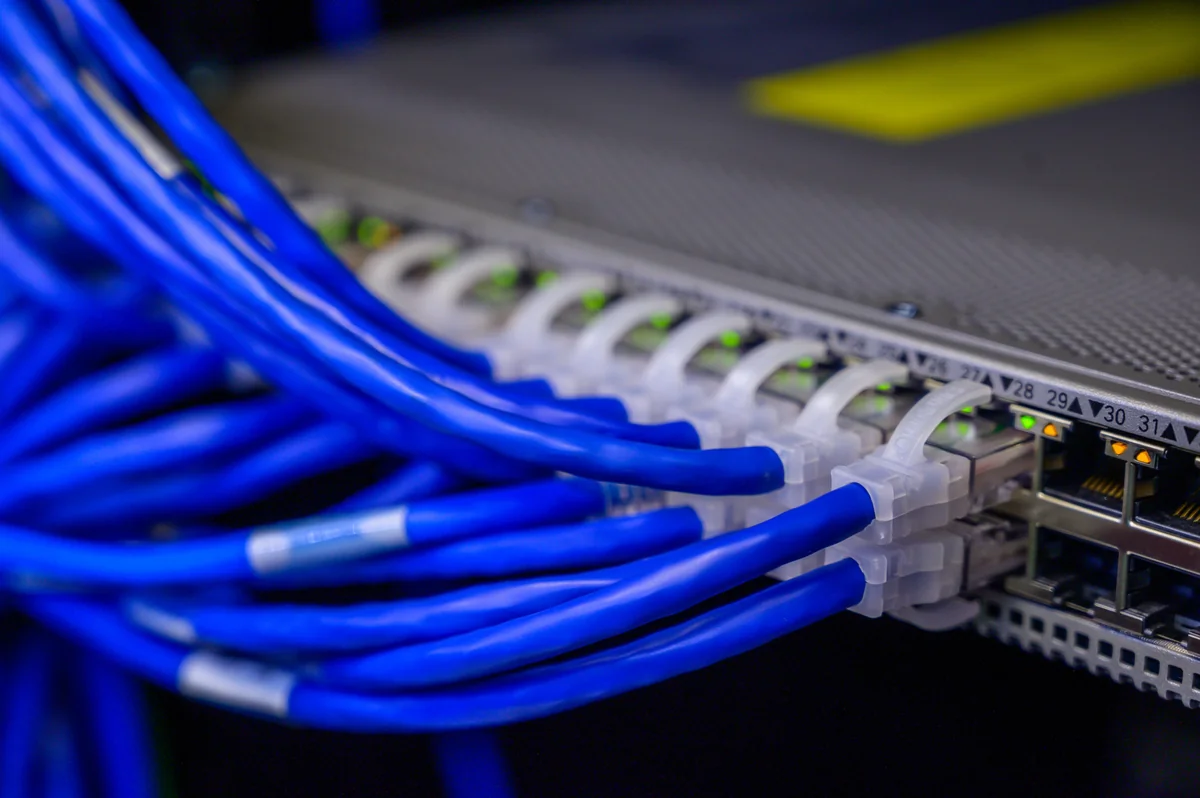
If the Server value and credentials both check out, the next cheapest thing to rule out is your own connection. Confirm the device has working internet at all. Try opening any website in a browser on the same device. If that works, try the same Xtream Codes login from a different network, like a phone's mobile data. See if the result changes. A network that blocks or throttles the connection on one side can produce the exact same "Refresh failed" screen as a wrong password.
4 and 5. Provider-side account problems
Suppose everything above checks out: fields filled, Server and credentials re-verified against the original source, network confirmed working. What's left is on your provider's side. That means an expired subscription, a suspended account, or a concurrent-connection limit already in use by another device signed into the same account. None of these are something you or IPTV Expert can confirm independently. This is the point where the checklist ends and contacting your provider begins.
What "Refresh failed" actually means (and why it can't tell you which cause applies)
Here's the part worth understanding, not just following. IPTV Expert's failure screen reads: "Please verify your internet connection. Double-check your credentials. If the issue persists, contact your content provider for assistance." That single message covers every cause on this checklist at once. That's a structural fact about how the app is built, not a wording choice a clearer message could fix.
Underneath that screen, the app's refresh step produces a plain success-or-fail result once it finishes contacting the server. A wrong Server value, a wrong password, an unreachable network and an expired subscription all collapse into the same "not successful" outcome by the time that result reaches your screen. More detail exists briefly during the process itself. But it's recorded for engineering diagnostics, not passed forward to the screen. So there's no version of this error message, however it's worded, that could tell you which of the five causes above actually applied.
That's also true of many Xtream Codes-compatible provider panels themselves. One documented panel API returns a single generic mismatch response for a wrong username or password, with no separate signal for an inactive account (Xtream-UI API reference). A failed login is commonly detected simply by the absence of the account-details object a successful one would include, rather than by a distinct error per cause (Xtream Codes API — Authentication & Account Info reference). The ambiguity isn't unique to any one app.
There's one more wrinkle worth knowing. Even a login that authenticates correctly but returns no usable channel data still ends up on this same "Refresh failed" screen. A technically successful credential check and a completely wrong password can look identical from where you're sitting.

When to stop testing and contact your provider
Confirm the Server value character-for-character. Re-verify Username and Password from the original source, not from memory. Confirm the device has working internet on at least one network. Once you've done all three, you've exhausted what you can check yourself. At that point, contact your provider and ask them to confirm three things directly: that the account is still active, that it hasn't hit its connection limit, and that the server address you have is still current. A provider with real support can check all three from their side, in a way no client app can.
If you're on your third or fourth retry with no new information, retrying again won't change the outcome. The button just re-runs the identical request. Move to contacting your provider instead of repeating the same test.

Not sure you actually have Xtream Codes credentials?
Everything above assumes your provider gave you three separate values: a server address, a username and a password. If instead you were given a single link, you have an M3U playlist, not Xtream Codes. None of this checklist applies the same way. How to Add an M3U Playlist to IPTV Expert covers that setup instead. M3U vs Xtream Codes: Which IPTV Login Format Should You Use? walks through how to tell the two apart if you're not sure which one you were actually given.
Haven't set up Xtream Codes in IPTV Expert yet? How to Set Up Xtream Codes in IPTV Expert covers the exact fields, in the order the app asks for them, before you hit a problem. Want the format explained from the ground up, including what the login exchange looks like and how to judge whether a source is safe? What Is Xtream Codes? Login Format, Setup and Safety covers that in full.
Which download should you use?
This checklist applies the same way on every platform IPTV Expert ships on. The four-field form and the shared "Refresh failed" screen are identical across devices. Pick the download that matches your device:
| Platform | Download |
|---|---|
| Android | Google Play |
| iPhone, iPad | App Store |
| Mac | Mac App Store |
| Windows | Microsoft Store |
| Linux | Snap Store |
| Fire TV, Android TV | APK download |
If you already have IPTV Expert installed and just needed to work through a failed login, you're set. If you're installing for the first time and aren't sure which platform build applies, the full IPTV Expert download chooser covers every supported device.

IPTV Expert
Watch on your screen
Download IPTV Expert for your preferred platform.
 Editorial & Product TeamIPTV Expert TeamThe IPTV Expert team documents advanced playback, playlist management, device setup, codecs, EPG and troubleshooting from hands-on testing across supported platforms.
IPTV Expert does not provide, host or sell channels, playlists or subscriptions.